How to Build a Freelance Portfolio in Notion
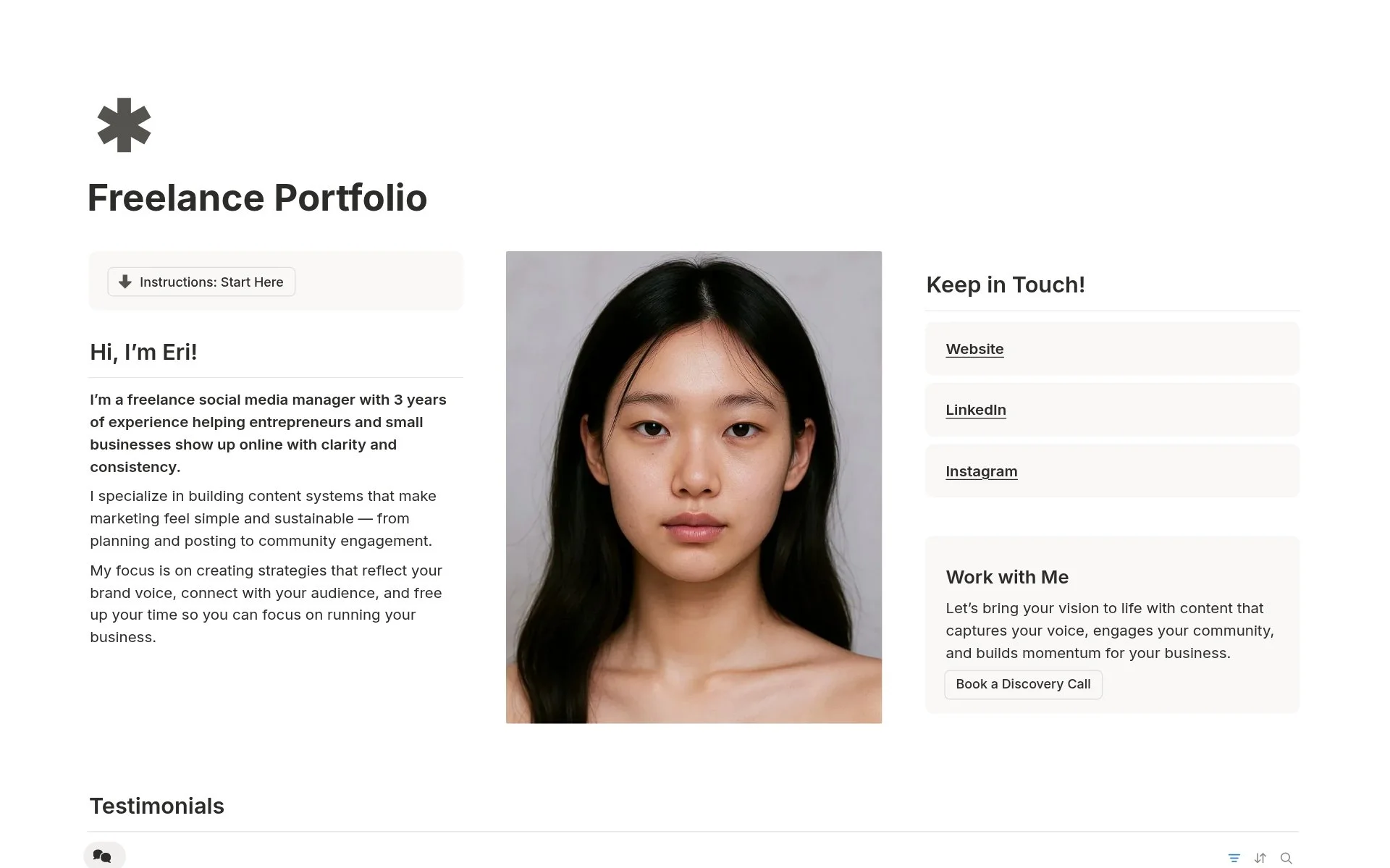
Published: February 24, 2026 | Updated: August 1, 2026
I've always found building a portfolio frustrating.
I didn't come from a background or career that required one, so none of it ever felt intuitive. I started out in big corporate, where conversations revolved around performance ratios and tidy resume bullet points. Not creative, project-based work that somehow had to be concise and comprehensive at the same time.
Then I shifted into copywriting, and everything changed.
I still remember the first discovery call where a prospect casually asked, "Do you have a portfolio I can look at?" I froze, mumbled something about putting a few things together, and scrambled for days afterward.
I'd talked my way around that question for months. But there's only so long you can wing it before it starts costing you clients.
So over the years, I tried almost everything.
Tools I’ve Tried (2022 - 2024)
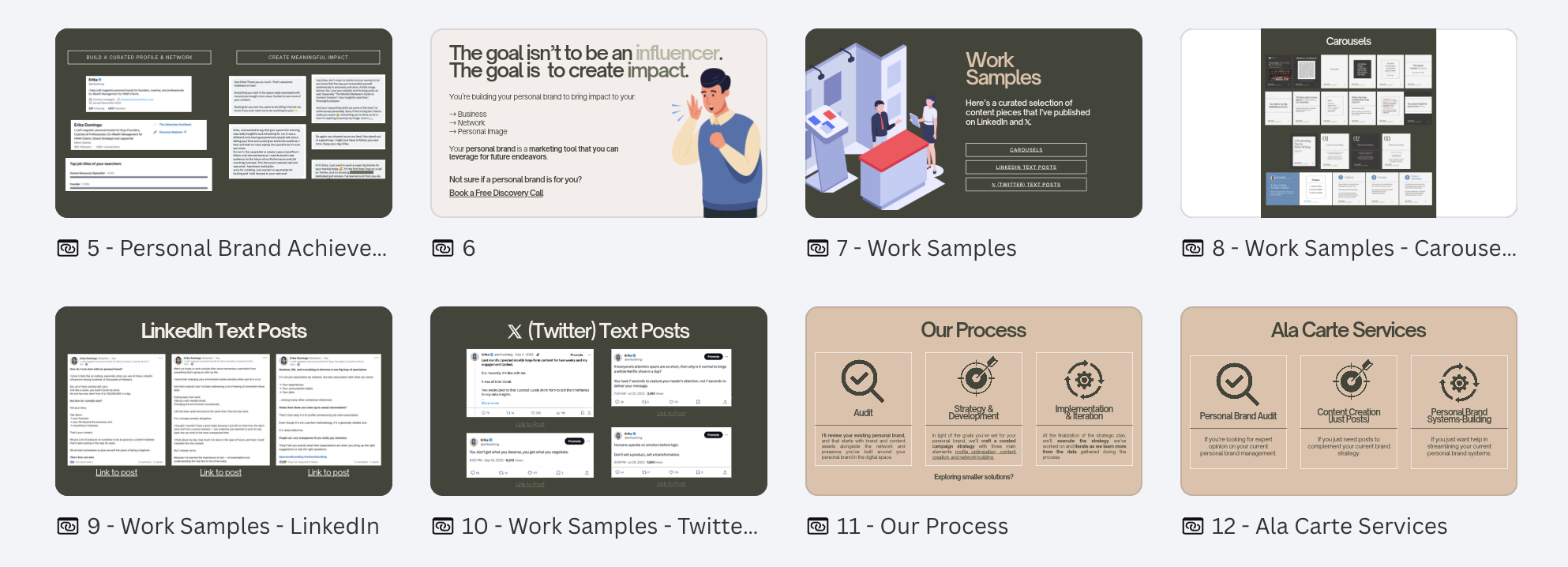
Canva Portfolio (2022 - 2024)
I used Behance for my early copywriting work, back when I was transitioning out of my investments role. It was useful for those early days, but the free version only allowed a certain number of portfolio pieces, and I felt like I needed to show more range if I wanted to be hired for writing work in investments.
When I specialized in personal branding copywriting, I moved to Canva. That was a nice departure from the rigidity of Behance and the one-off pieces that suited more traditional writing gigs.
Eventually I built an actual website. Maintaining it became a chore in itself, and I would always get hit by how the ratios looked different on every screen. Sometimes prospects would message me afterward about errors they ran into.
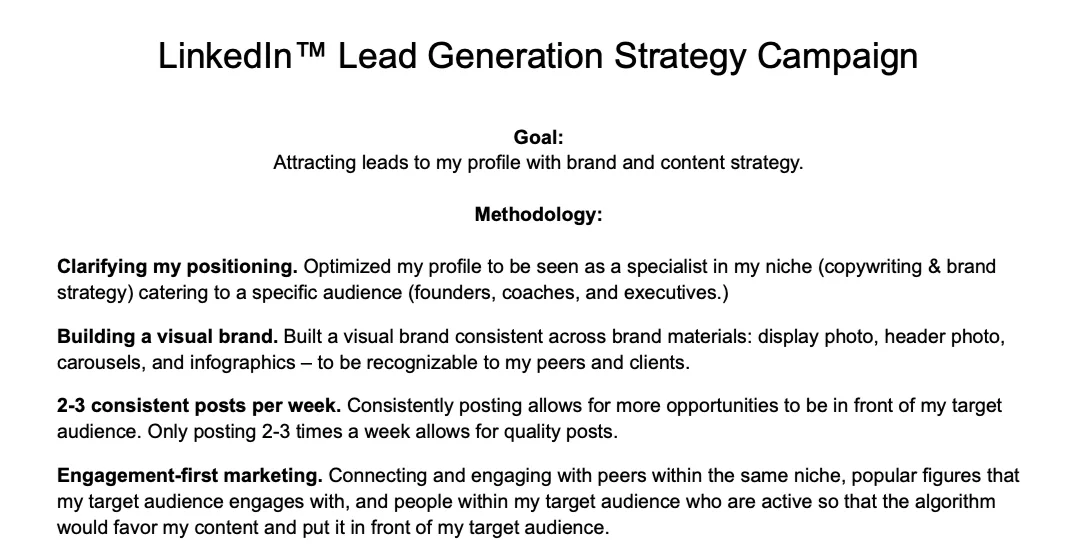
Google Doc Portfolio (2023)
Then, when website management became more work than I could actually get, I ended up hosting my portfolio through Google Drive and Google Docs. Simple, and it had its good times, but it lacked the positioning that a website or Canva could do.
Truthfully, each option had its strengths, and I had a tendency to jump from one channel to another. But they all shared the same weakness: none of them connected my files to the dashboard that my client explored.
Every new setup came with its own headache. Fussing over how a layout would render. Wondering whether a client could make sense of a raw Drive folder. Cringing at how unpolished Canva looked to a paying prospect. Being forced to feature only a few projects on Behance.
I eventually found the solution in Notion, mostly because it works the way my brain already connects ideas.
But before the how, it's worth being clear about what a portfolio is actually doing. That part took me the longest to understand, and it's the reason the structure below is shaped the way it is.
What a portfolio is actually for
A portfolio is not a gallery.
A gallery asks you to admire something. A portfolio asks someone to make a decision, usually one that costs them money and carries some risk. Those are different jobs, and most portfolios fail because they're built for the first one.
Underneath every visit, a prospect is running through three questions, roughly in this order:
Do they understand my world? Before anyone evaluates your craft, they're checking whether you've operated in a context resembling theirs. A wellness coach and a fintech startup can both hire a copywriter, but they're not looking for the same person.
Have they done the thing I need done? This is the evidence question. Not "are they talented," but "is there proof this specific outcome has happened before."
Can I trust what they say about it? You are, after all, the one narrating your own results. Something has to corroborate you.
Each part of the system below exists to answer one of those questions:
Clients answer the context question.
Projects answer the evidence question.
Skills transfer that evidence to the prospect's own situation.
Testimonials corroborate it.
Your bio handles fit and tone.
Your FAQ removes the friction that stops people from reaching out.
That mapping is the whole design. When something in your portfolio feels off, it's usually because a section is trying to do a job it wasn't built for. A bio doing the work of a case study. A skills list standing in for evidence.
Part 1. Backend
This is the engine of your portfolio. Get these databases connected first and the front page practically builds itself.
It feels backward. Most people start with the homepage because that's the part that feels like portfolio. But a homepage built before the underlying work exists is just a layout, and you end up rearranging it forever.
You'll build four databases (clients, projects, skills, testimonials), link them to each other, and only then assemble anything a visitor sees.
Step 1. Add Clients
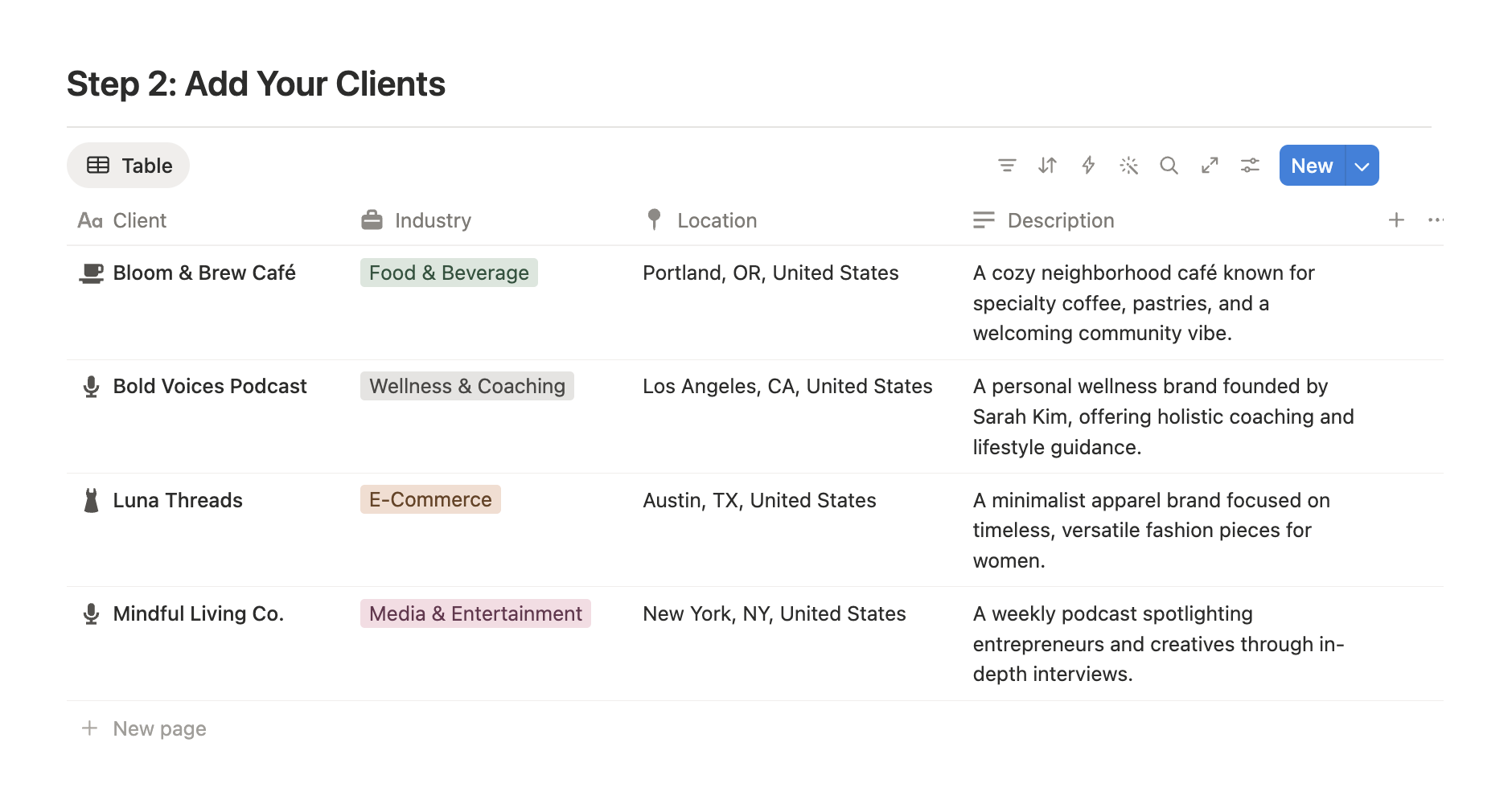
Clients — Freelance Portfolio Notion Template
Your client pages are the anchor of the whole system.
For a prospect browsing your portfolio, seeing the kinds of companies you've worked with immediately signals whether you understand their world. And for you, separating the who (clients) from the what (projects) gives every piece of work a place to live.
When you set one up, think less about impressing and more about context.
A prospect is asking, "Has this person worked with someone like me?" So capture the details that answer that: the client's niche, the tools you used together, how long the relationship ran. Write it the way you'd brief a colleague who's about to take over the account. Factual, oriented, no fluff.
What a useful client description looks like
The instinct is to write something flattering. Resist it, because flattery tells a prospect nothing about you.
Weak: "A wonderful local café with an amazing team and a great community vibe."
Useful: "A neighborhood café known for specialty coffee, pastries, and a strong walk-in community. Owner-operated, single location, no marketing staff. Instagram was the only active channel."
The second one is doing real work. It tells a prospect the size of the operation, the constraints you worked under, and the channel you were responsible for. A different café owner reading it recognizes themselves immediately.
A few properties worth adding to the database while you're here: industry, location, engagement type (project or retainer), and duration. These become filters later, which matters more than it sounds. When a prospect in food and beverage lands on your portfolio, you want to be able to point them at three relevant clients rather than asking them to scroll.
One caution: if you plan to share this page publicly, everyone can see every entry in the database. Only include clients who have consented to having their work featured. For the ones who haven't, an anonymized entry ("a Series A fintech startup") still carries most of the context.
This is the foundation everything else builds on. Once your clients exist as their own pages, your projects, skills, and testimonials all have something to attach to, and that's what eventually turns a scattered list of work into organized, believable case studies.
Step 2. Build Projects
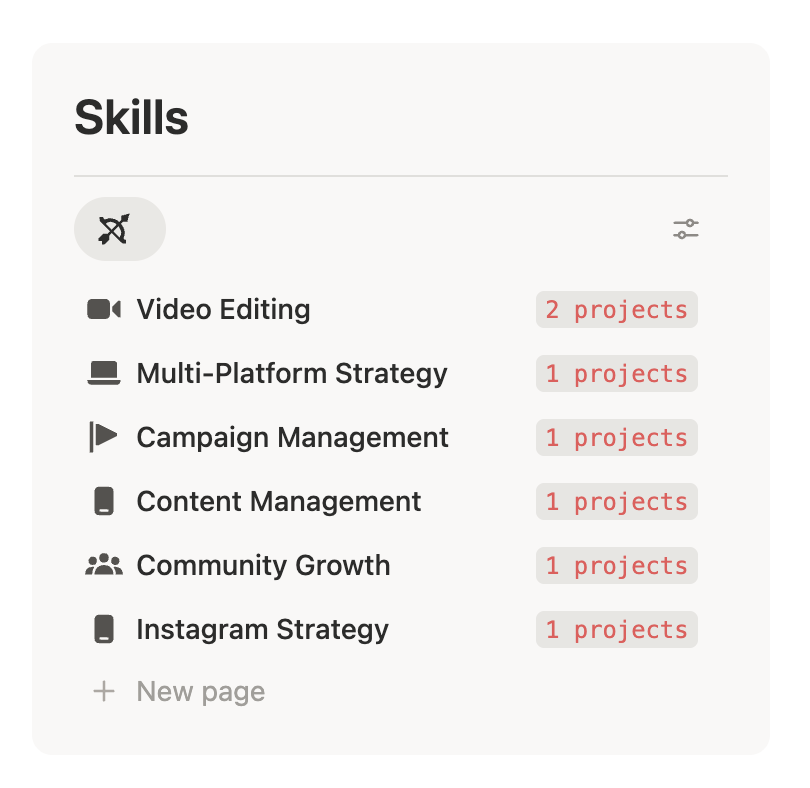
Skills — Freelance Portfolio Notion Template
If clients are the context, projects are the evidence.
This is the part of your portfolio a prospect actually studies, because it answers the real question behind every hire: "Can this person do the thing I need done?" Each project is a small exhibit that proves you can.
Start by thinking about your career in discrete pieces. The campaign you led. The workflow you rebuilt. The content series you launched. For each one, get clear on the shape of the story before you write a word: what the situation was, what you actually did, and what changed because of it.
Don't worry about polishing the language yet. Worry about choosing projects that carry weight.
As you add them, each project links back to the client it belongs to, and the picture starts to compound. One project is an anecdote. A handful of well chosen ones, tied to real clients, is a track record.
Aim to feature four or fewer on your front page so your strongest work never gets buried.
The shape of every case study
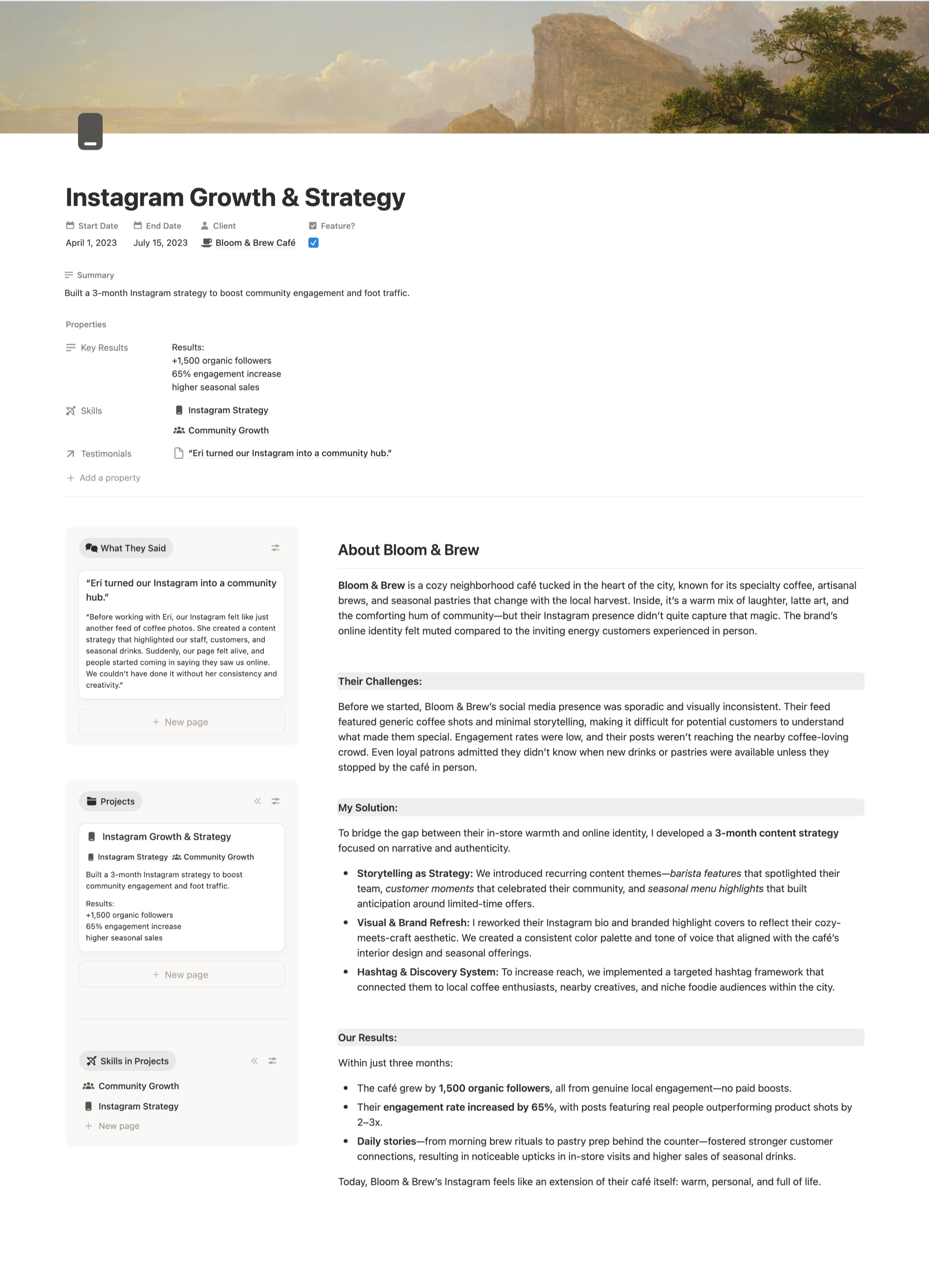
Case Study — Freelance Portfolio Notion Template
Whatever the industry, a case study is answering the same three-part question: what was true before, what did you do, what was true after.
That's it. Every framework you've seen is a variation on those three beats. The sections below just make sure you don't skip one.
Summary. Two or three sentences someone can read and understand the whole thing.
Background. Who the client is and what they were working with.
Problem. What wasn't working, stated in the client's terms, not yours.
Implemented solution. What you actually did. Specific enough to be credible.
Insights. What you learned or noticed along the way. This is the section that signals judgment rather than execution.
Results (and stats). What changed.
Optional: testimonials. Sometimes the results speak clearly enough on their own.
Section five is the one most people skip, and it's often the most persuasive. Anyone can follow a brief. Showing that you noticed something the client didn't is what separates a contractor from a partner.
What to do when you don't have numbers
Most freelance work doesn't come with clean analytics, and pretending otherwise reads as invented. Three honest alternatives:
Relative change. "Posting went from irregular to twice weekly, held for three months." No percentage required.
Scope. "Rebuilt the full content system across three channels in six weeks." Size is its own evidence.
Continuation. "The engagement was extended twice." A client renewing you is the strongest result there is, and it's the one nobody thinks to mention.
If a client genuinely can't share numbers, say so plainly. "Results are under NDA, but the engagement was extended" is more credible than a vague claim of growth.
Step 3. Link Up Skills
Skills are what let a prospect translate your past work into their future outcome.
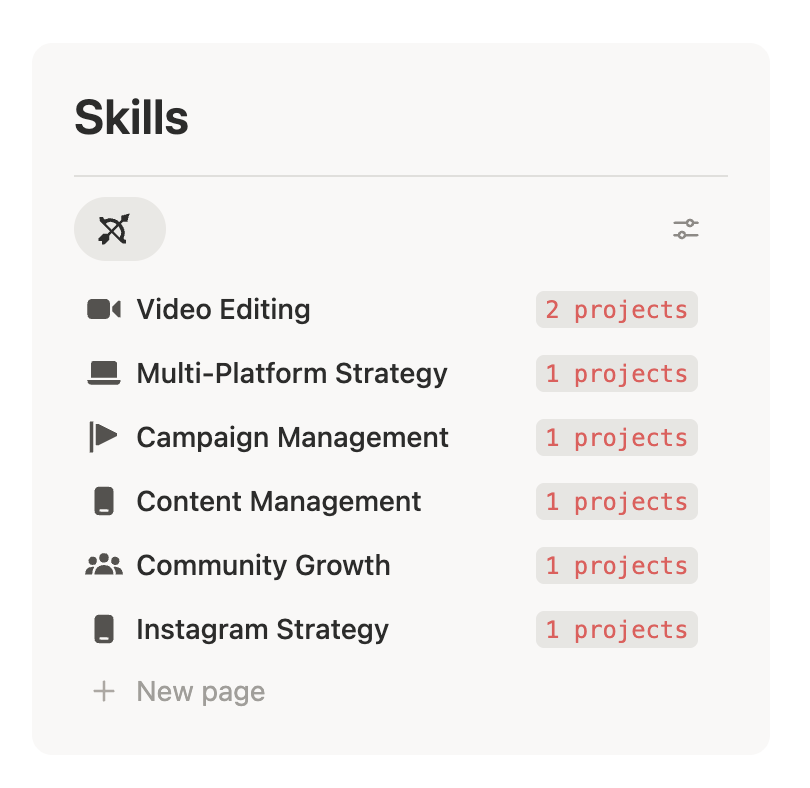
Skills — Freelance Portfolio Notion Template
On their own, a list of skills is just adjectives. Attached to real projects, they become claims you can back up. This is the step that quietly answers, "Sure, you did that for them, but can you do this for me?"
The move here is to go project by project and pull out the skills each one honestly demonstrates.
Naming skills at the right altitude
Most skills lists fail in one of two directions.
Too broad: Marketing. Writing. Strategy. These are categories, not capabilities. Nobody hires "marketing."
Too narrow: Writing Instagram captions for independent coffee shops. Accurate, but it describes a task, and it makes you look like you've done exactly one thing.
About right: Instagram Content Strategy. Campaign Management. Community Growth. Specific enough to mean something, broad enough to travel to a new client.
Two tests that help. First, would a prospect plausibly type this phrase into a search bar or a brief? Second, can you point at a project and say "here, this is that"? If a skill fails the second test, it isn't a skill yet. It's an aspiration, and it belongs in your plans rather than your portfolio.
Be strategic about which ones you surface
Lean toward the skills you want your next clients to hire you for, not just the ones you happened to use.
This matters more than it sounds. Your skills list is a quiet form of positioning, and if you list everything you've ever done, you'll keep getting hired for the work you're trying to leave behind.
If you're trying to move from execution into strategy, make sure your strategy skills are visibly tied to results rather than buried inside a description of what you delivered. The project where you set the direction and the project where you followed a brief can look identical in a portfolio if you're not deliberate about it.
Do this across enough projects and something useful happens: your skills stop being a self description and start being a pattern of proof.
Step 4. Collect Testimonials
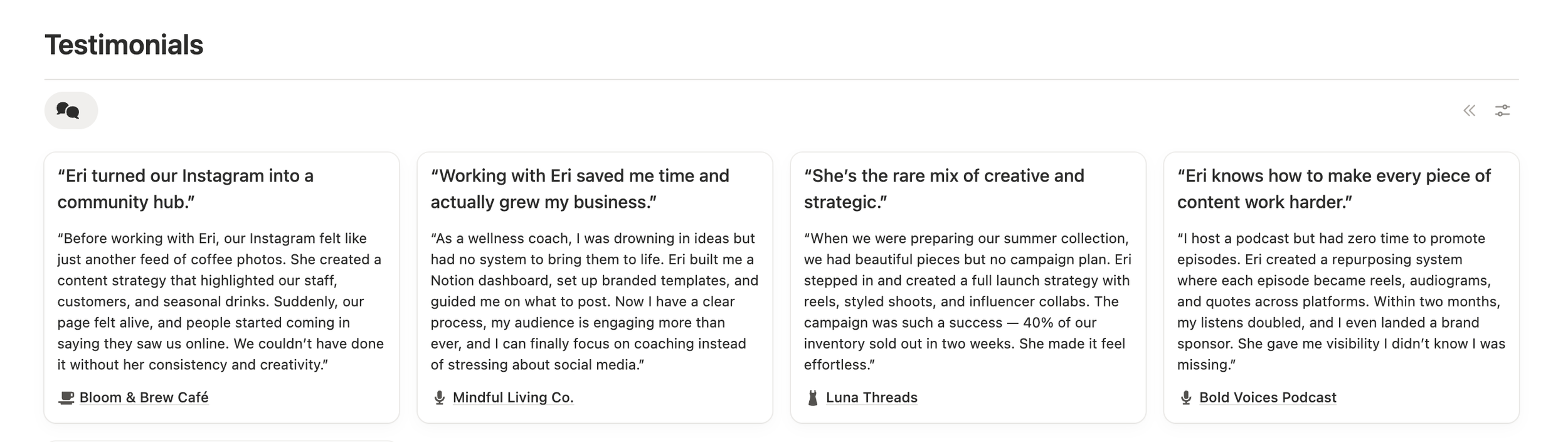
Testimonials — Freelance Portfolio Notion Template
Everything up to now is you talking about your own work.
Testimonials are someone else vouching for it. To a prospect deciding whether to trust you, that outside voice often carries more weight than anything you could say yourself.
When you gather them, link each one back to the client and project it came from, and pay attention to what each one actually vouches for.
Coverage > Volume
Five testimonials that all say you're lovely to work with are, functionally, one testimonial.
The useful way to think about it is coverage. A prospect has several separate doubts, and each testimonial can retire one of them:
Reliability. Will this person actually deliver, on time, without me chasing them?
Communication. Is working with them going to be exhausting?
Results. Did anything actually change?
Judgment. Do they think, or do they just execute?
Aim for one strong quote in each category rather than four in the same one. Then check your featured set against that list and notice which doubt you're leaving unanswered.
Keep that featured set small, around four people, so each voice actually gets read. Where you can, choose testimonials that reinforce the exact skills and projects you're already featuring.
How to ask better testimonials?
The reason most testimonials are vague is that most requests are vague. "Would you mind writing a few words?" produces a few words, and they're always the same few words.
Ask specific questions instead and let them answer in their own language:
What was the problem you were trying to solve before we started?
Was there anything that made you hesitate about hiring someone for this?
What changed after we worked together?
Was there anything about how we worked that surprised you?
Who would you recommend this to?
That second question is the valuable one. A testimonial that names a hesitation and then dissolves it is worth more than five compliments, because it speaks directly to the prospect currently sitting with the same hesitation.
Then tell them you'll edit lightly for length and send it back for approval. That removes the pressure to write something polished, which is the actual reason people delay these requests for weeks.
When I specialized in personal branding, this is what I'd always ask people I worked with to look at. What are your clients really saying about you? It's evidence, and good support for your positioning or pitch.
Linked this way, your testimonials stop being a wall of praise and start acting like evidence sitting right next to the work it describes.
Step 5. Build Client Pages
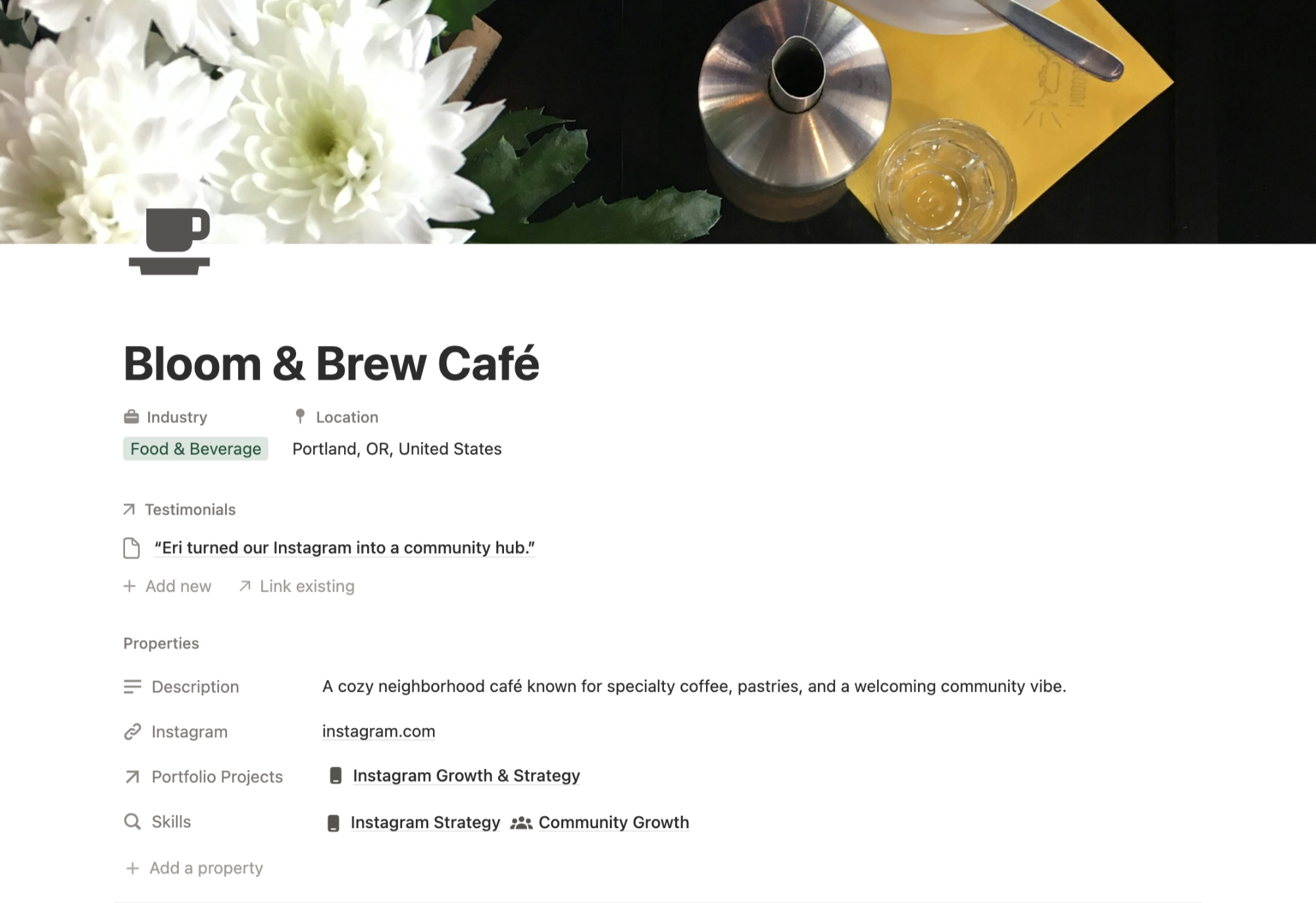
Client Page — Freelance Portfolio Notion Template
This is where all that backend work finally pays off.
Because you've been linking everything as you go, each client page can now assemble itself. It pulls in the related projects, skills, and testimonials automatically on one side, while giving you a customizable dashboard on the other. To a prospect, it reads like a finished case study rather than a folder of files.
This is the payoff of the relational structure, and it's worth pausing on. You didn't write this page. You wrote its parts, separately, at different times, and the page assembled from them. Which means the next client page costs you almost nothing.
Your job here is mostly narrative. The data is already in place, so focus on writing a short overview that gives it meaning.
What the overview needs to do
Four sentences, roughly:
Who the client is and what they were dealing with.
What the engagement actually was, including its shape (project, retainer, duration).
What you were responsible for.
Why the outcome mattered to them, in their terms.
Something like:
Bloom & Brew is an owner-operated café with one location and no marketing staff. I ran a three-month engagement rebuilding their Instagram from irregular posting into a weekly system the owner could sustain alone. I was responsible for strategy, the content calendar, and caption writing, with photography staying in-house. By the end, the account was generating catering enquiries, which had never been a channel for them before.
That's the connective tissue. Everything else on the page is links and properties. This paragraph is what turns them into a story someone can follow.
Once a client page is done, you can feel the system working. The parts you built separately now stand together as a single, credible argument for hiring you.
Part 2: Front Page
This is the first thing a potential client sees, so it's worth getting right.
The front page has one job, and it isn't to show everything. It's to get the right person to the right client page and then to your inbox. Restraint helps here. Four featured projects, four testimonials, one clear next step.
Step 6. Update Bio
Your bio is the first thing anyone sees, which makes it the frame for everything underneath.
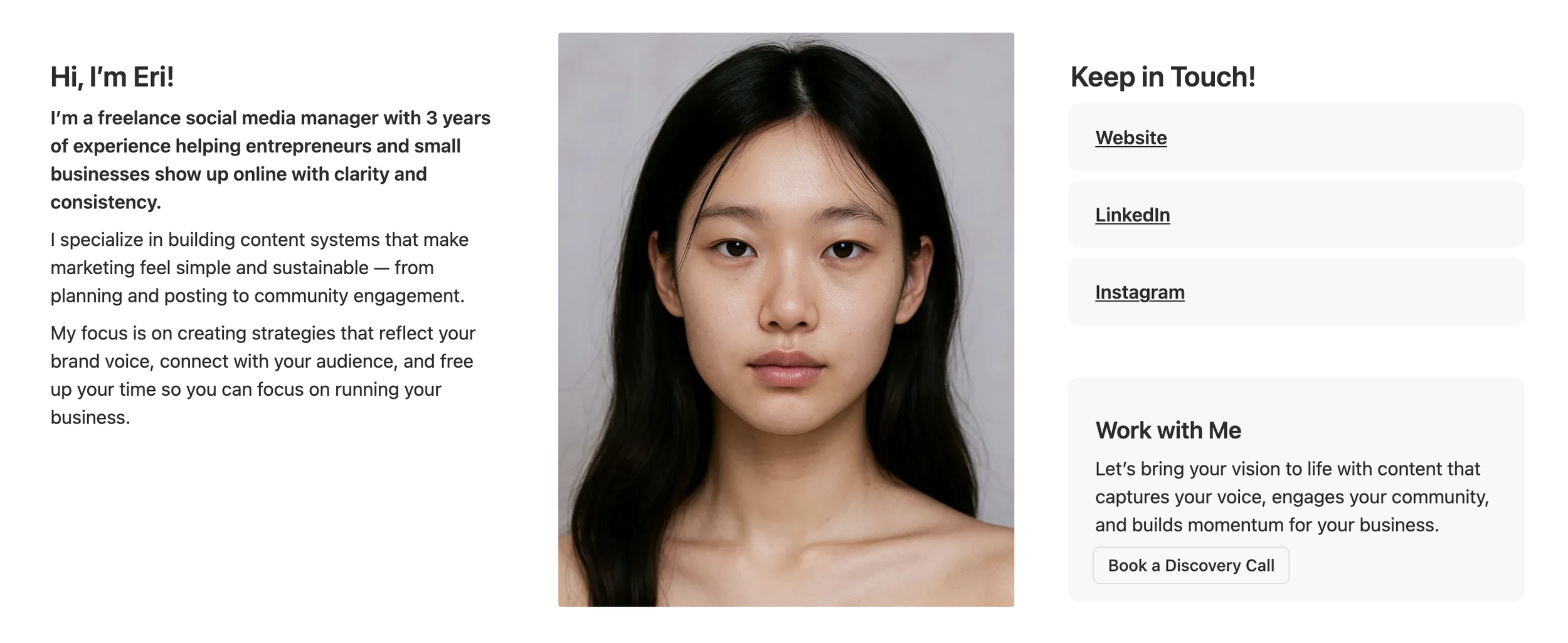
Bio Section — Freelance Portfolio Notion Template
In just a few lines, a prospect decides whether you're the kind of person they want doing this work. So this short section is doing a surprising amount of heavy lifting.
It has three jobs and no more: say who you are and what you do, say who it's for, and give an obvious next step.
The thing to get right is tone. It should sound like you actually talk, whether that's warm, sharp, or playful, because that voice is part of what they're hiring.
Two examples in different registers
Warm and direct:
Hi, I'm Eri. I'm a freelance social media manager with three years of experience helping entrepreneurs and small businesses show up online with clarity and consistency. I specialize in building content systems that make marketing feel simple and sustainable, from planning and posting to community engagement. If your accounts have gone quiet and you'd like them to stop feeling like a second job, I'd be glad to talk.
Sharper and more positioned:
I build content systems for small teams that don't have a marketing department. Three years of that, mostly with owner-operated businesses in food, wellness, and retail. My work is less about posting more and more about making the posting sustainable once I'm gone. Discovery calls are thirty minutes and free.
Both do the same three jobs. They just sound like different people, which is the point.
I've put this as a later step on purpose. It's easier to figure out what your portfolio looks like before you write the profile that introduces it. Similar to research papers and essays, you usually build the body before the introduction.
Step 7. Add an FAQ
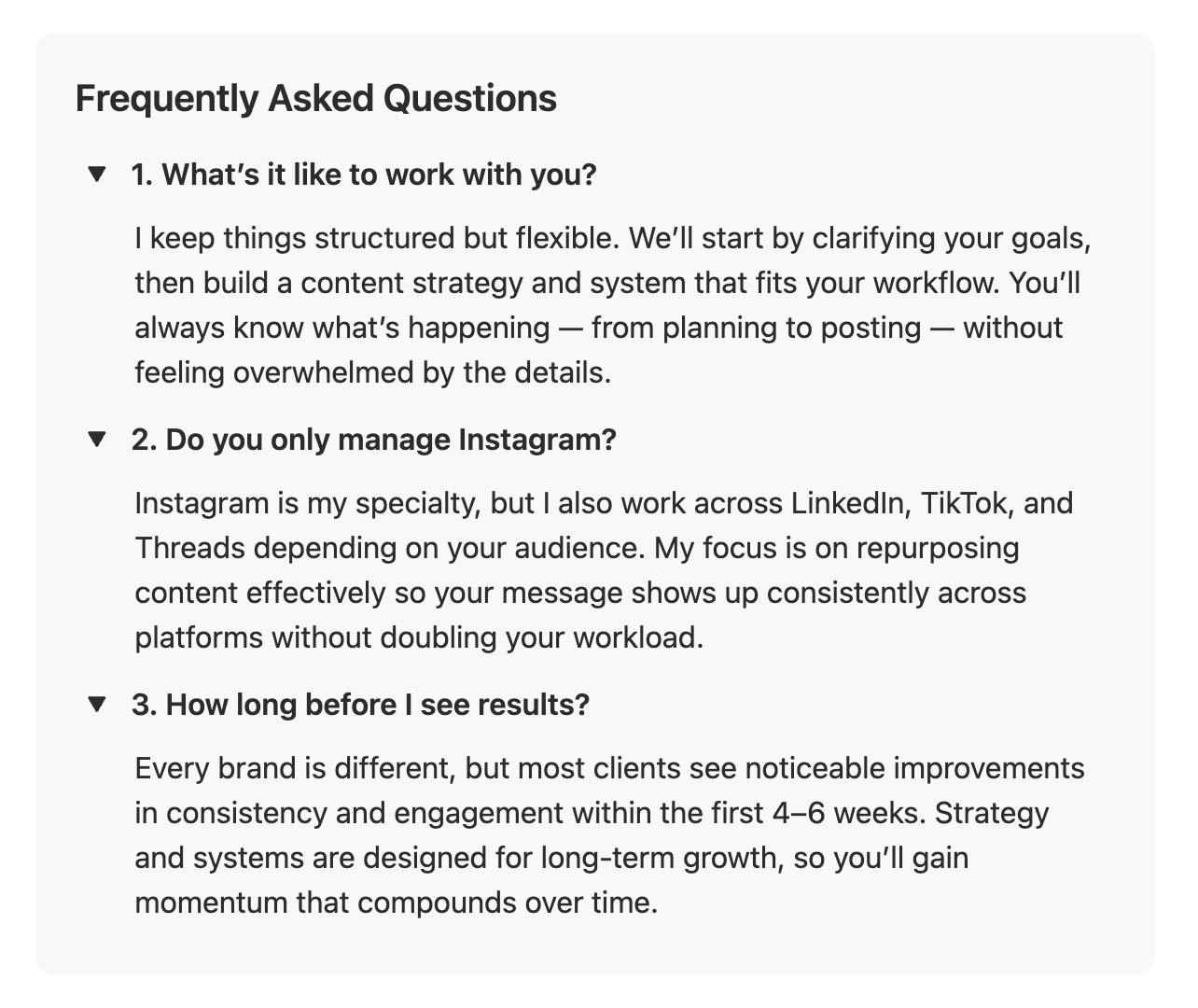
FAQs — Freelance Portfolio Notion Template
A good FAQ is secretly one of the most persuasive parts of a portfolio, because it removes the small doubts that stop people from reaching out.
If you offer a specific service, prospects will always have the same handful of questions. Answering them up front makes working with you feel easy and predictable.
Here's the theory underneath it. Almost nobody who's interested tells you why they didn't reach out. They just don't. The FAQ is the only section of your portfolio that gets to handle an objection you'll never hear, which makes it the highest-leverage writing on the page.
What questions are worth answering?
Start with the ones you actually get asked most. Then add the ones people are thinking but too polite to raise:
Process. What is it like to work with you, week to week?
Timeline. How long before I see results?
Scope. Do you only do X, or can you handle Y?
Pricing. Even if you don't publish rates, say how pricing works. "Retainers start at a monthly minimum, scoped after a discovery call" answers more than silence does.
Failure. What happens if it isn't working? This is the one everyone skips, and answering it honestly does more for trust than any testimonial.
Answer them the way you would in a real conversation: honest, specific, and reassuring where it counts. The temptation is to answer defensively, which reads as evasive. Compare "results vary depending on many factors" with "most clients see noticeable improvement in consistency and engagement within the first four to six weeks, but strategy work compounds, so the meaningful gains usually show up around month three."
The second is more honest and more reassuring. That's usually how it goes.
By the time a prospect reaches this section, they've already seen your work, your skills, and your proof. A clear FAQ ties it all off, clears the last hurdles, and nudges them toward the one action you actually want: getting in touch.
And that's the build!
If you've made it this far, the hardest part is already behind you.
Everything from here is maintenance. Adding new clients as they come, linking new projects, refreshing testimonials as they arrive. The system does the compounding for you, which is the part no static portfolio ever did for me.
A cadence that works, if you want one:
After every engagement. Add the project, link it, and request the testimonial while the work is still fresh. Waiting two months is why most testimonials never get written.
Quarterly. Look at what's featured on the front page and ask whether it still points at the work you want next. This is where positioning drifts if you're not watching.
Yearly. Rewrite the bio. Your positioning will have moved more than you think.
Somewhere down the line, a prospect will ask if you have a portfolio they can look at. Instead of scrambling like I did on that first discovery call, you'll just send a link and let the work speak for itself.
If you have questions, you can reach out to me via Instagram or answer my Private Feedback Form. Messages through Instagram sometimes take a bit longer to be filtered, so the private feedback form is a more reliable form of communication!